

Can You Edit Background Noise From iPhone Videos?
Your iPhone video looks sharp, but the moment you tap play, a low hiss and a fan hum sit under the voice. You try to ignore it, but it makes the whole clip feel…
Wind is the most common way to ruin a good take outdoors: the voice is there, but it sits under a low, rolling rumble that makes every sentence tiring to follow. This page is made for that situation. You drop in the video or the audio file, the "What to keep?" screen opens on Voice, and Klipa keeps the speech while lowering the wind rumble and the hiss that cover it.
The tool reduces wind. It does not erase it by magic. When the voice is still present underneath a steady grumble or a constant hiss, the low rumble drops and the speech comes forward, and that is where the result is most convincing. A file you upload stays the kind of file it was: a video comes back as a video with its picture untouched, and an MP3 comes back as an MP3.
A strong gust can push the microphone past what it can record. You hear it as a crackle or a burst, and the words spoken at that moment are cut off or distorted in the recording itself. Once the voice is not in the file, nothing can bring it back, and no tool can rebuild a sentence that was never captured. So a clip with a few such gusts will still contain them, even if everything around them sounds calmer. Be wary of any page that promises to remove wind completely from every recording.
The "What to keep?" screen offers Auto, Voice, Music and Everything. For a person talking in the wind, Voice is the right start: it keeps speech and singing and removes the rest. Everything keeps all the sound and removes only background hiss, which is a lighter treatment and not the one meant for a wind rumble. You can change the choice and run the file again if the first result is not what you wanted.
The cheapest fix happens before you press record. A foam or furry windscreen on the microphone, a microphone held close to the mouth, and a spot sheltered by a wall, a car or your own body all make a bigger difference than any cleanup afterwards. The phone's own microphone is especially exposed, so turn it away from the wind when you can.
Once the wind has been lowered, the same audio is easier to work with in the next steps: the transcription reads it more accurately, and silences are easier to detect when a rumble is not filling them.

Drop in the video, or an audio file such as an MP3, a WAV or a voice memo. There is nothing to install and no need to pull the sound out of the video yourself first.
The screen opens on Voice, the right start for speech recorded in wind. Auto, Music and Everything stay available if your clip needs something else. Start the cleanup.
Get the result in the same kind of file you sent. Play it from the start, paying attention to the gusts, and run it again with another choice if the first pass is not right.
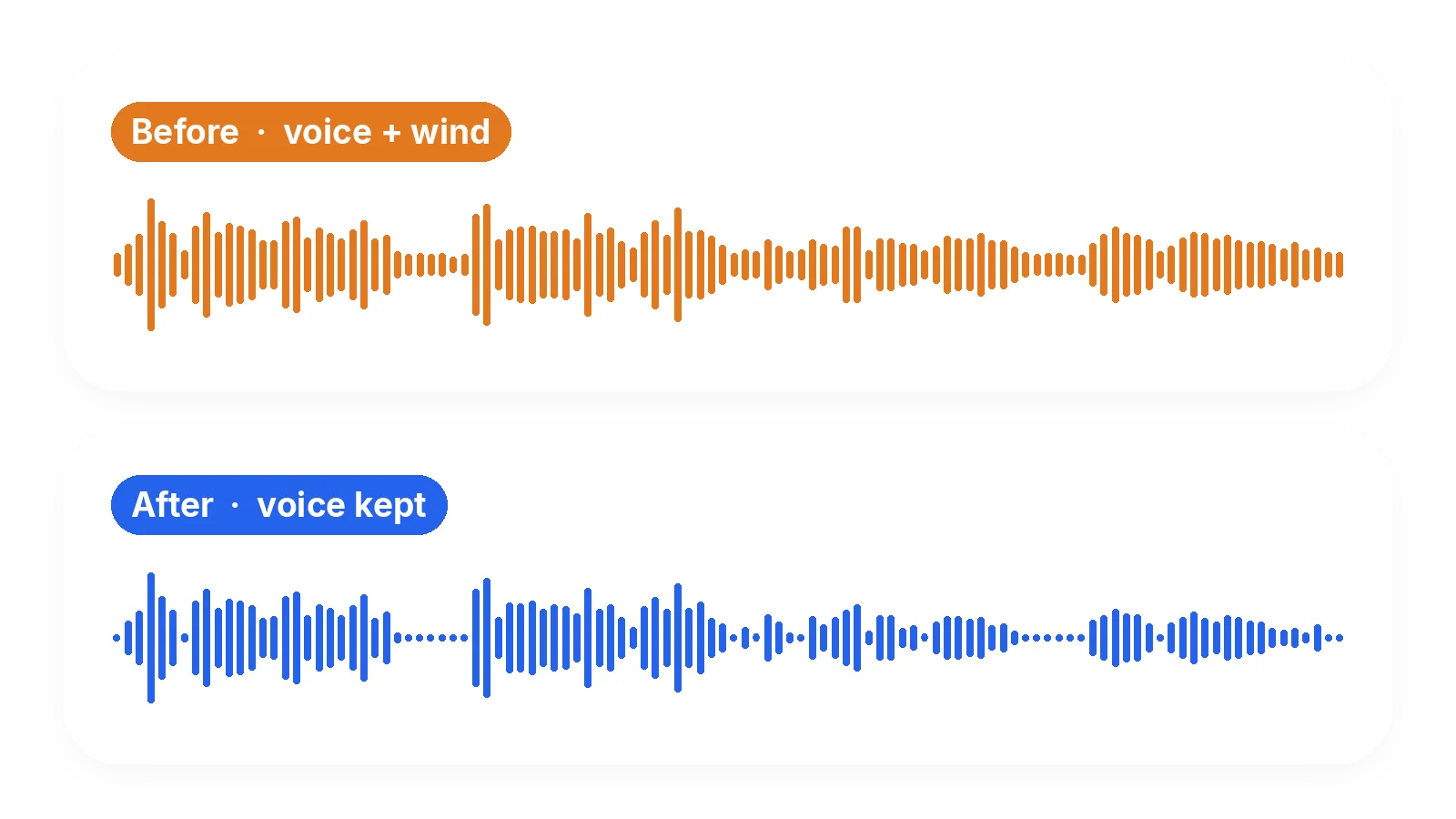
The treatment starts from what you want to keep, the speech, and drops the rest, instead of a filter laid over the whole mix. That is how the low rumble goes down while the voice stays natural and recognisable, even when the wind was blowing for the whole length of the take.
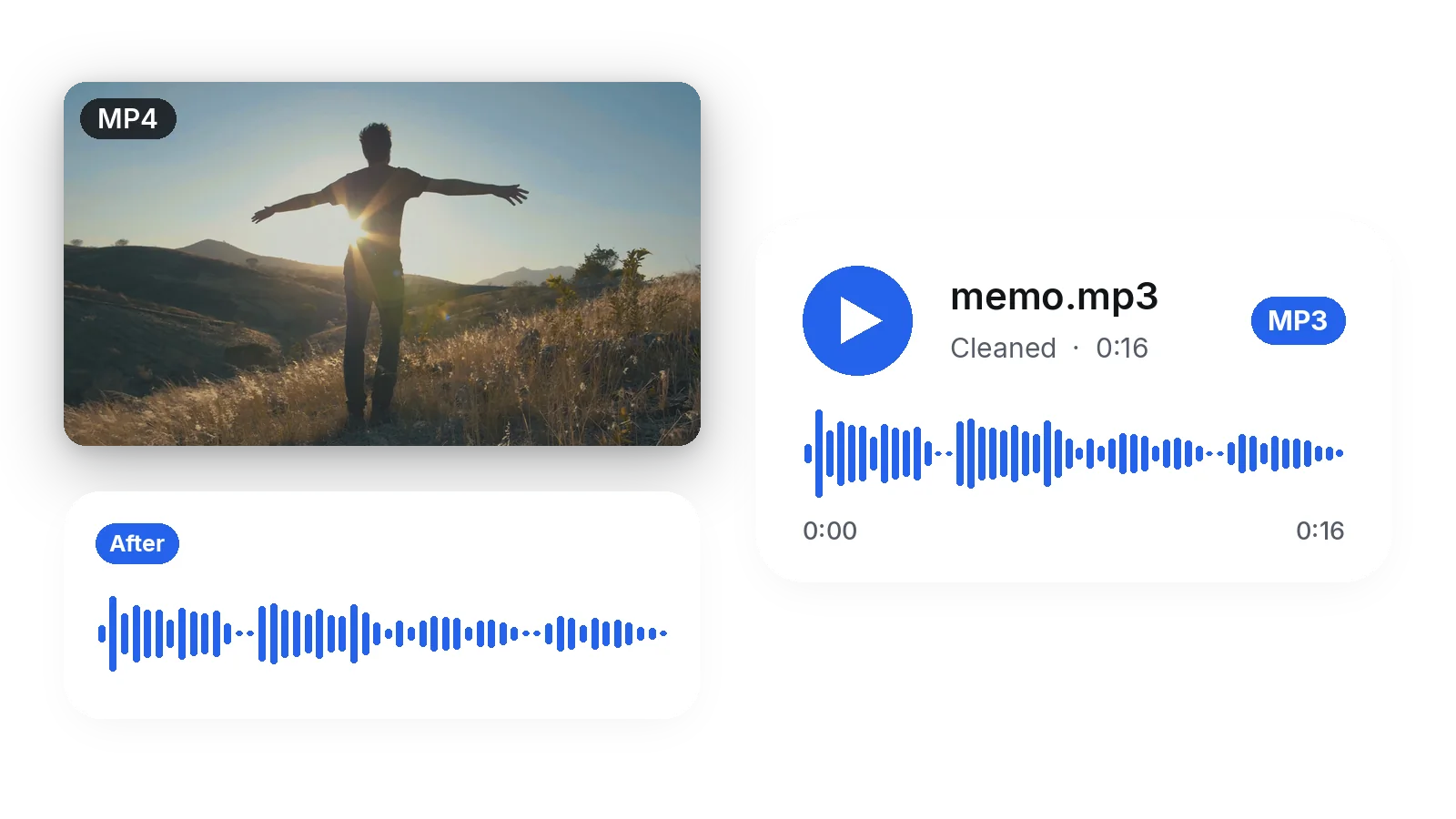
Use a video shot on a phone or action camera, or a simple recording such as an MP3, WAV or voice memo. The same cleanup runs on both, and a file you upload comes back as the same kind of file.
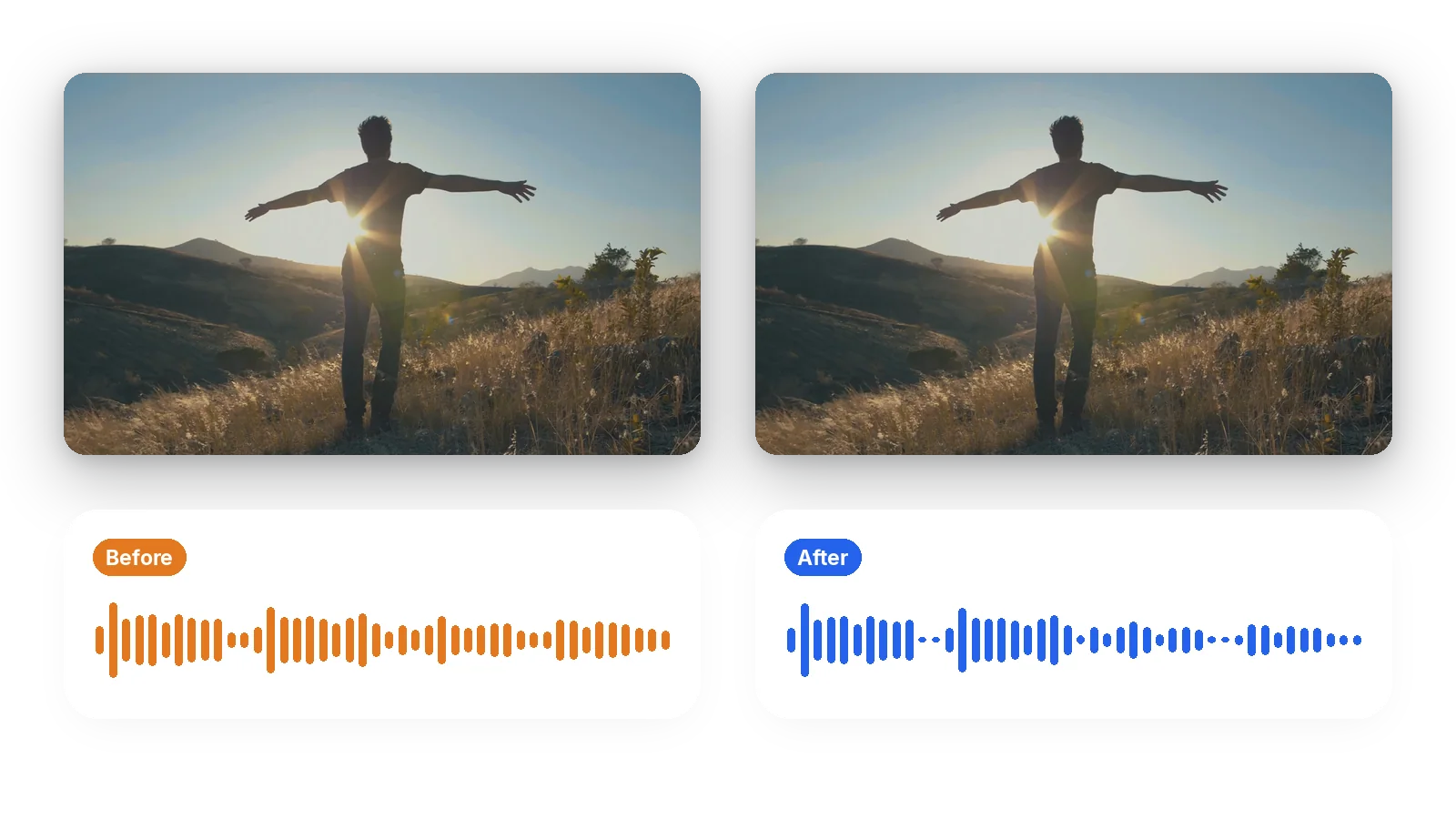
Only the sound is worked on. The shot you framed in the wind, with its colours and its sharpness, is returned as you filmed it, so there is nothing to re-edit or to line up again afterwards, and the cleaned sound simply goes back onto the same footage.
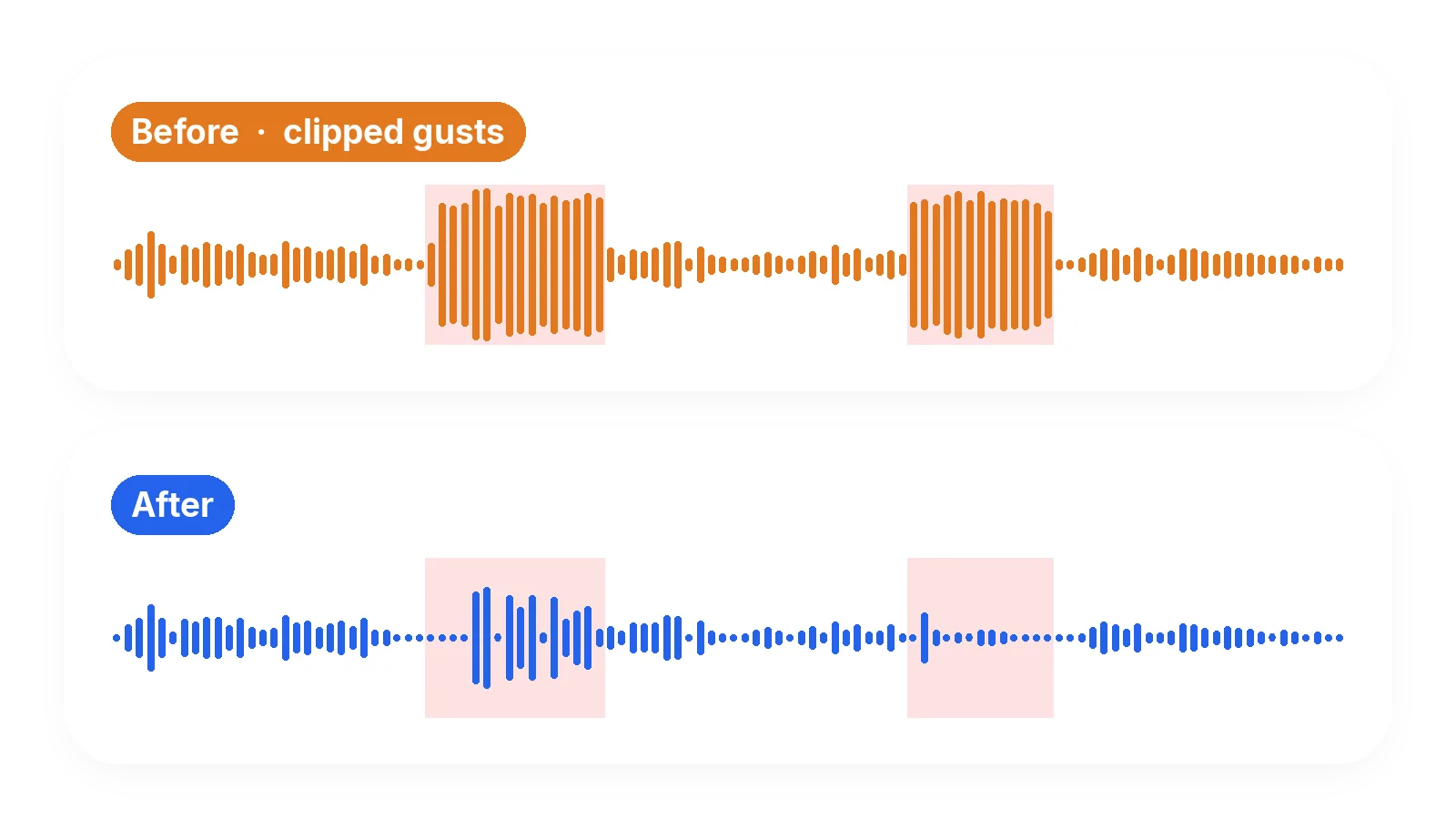
A gust that overloads the microphone cannot be rebuilt, and we say so instead of promising a miracle. You know before you upload what can improve and what cannot, and how to record better next time, with a windscreen and a sheltered spot.
A quick question asked on a street corner, a hillside or a pier. The person speaks clearly, but the wind sits under every answer. Lowering the rumble brings the conversation forward before you cut and publish it.
Talking to the camera on a bike, a scooter or a motorbike gives a constant whoosh over the voice. If your words are still audible, the cleanup lowers the rumble so the commentary can be followed.
Ideas, notes or a message recorded outside on a phone often come back as mostly wind. Upload the MP3 or M4A file as it is, keep the voice, and get an audio file you can listen to or send.
Family clips shot where it is breezy carry a soft roar under every word. Lowering it makes the people in the shot easier to hear, which is often all that is needed to keep the clip.
A match, a market or a ceremony filmed from the edge, with wind on the microphone and someone talking nearby. Voice mode brings that speech forward over the steady blow, as long as it was recorded.
Yes, it can be reduced. Upload the video, keep the Voice choice, and the low rumble and hiss that sit over the speech are lowered while the picture stays as filmed. How much improves depends on how clearly the voice was recorded under the wind.
Not always. The tool reduces the rumble and hiss covering a voice, but a gust that overloads the microphone makes the sound crackle and cuts the voice itself. That sentence was never recorded, so it cannot be reconstructed. Expect a calmer track, not a perfect one.
Send the video from your phone to this page through the browser, using the upload button. Keep Voice selected and start the cleanup. The video comes back with the picture untouched and the wind lowered, so you can save it to your camera roll again.
Yes. Upload an MP3, WAV or M4A file directly, such as a voice memo recorded on a walk. The same cleanup runs, and a file you upload comes back as the same kind of file, so an MP3 stays an MP3 you can play or share straight away.
No. Everything happens in your browser, on a phone or a computer. You upload the clip, pick the option, and download the result. There is no audio editor to learn, no plugin to set up and no separate export of the sound track.
Use a foam or furry windscreen on the microphone, hold it close to the mouth, and stand with your back to the wind or behind a wall or a vehicle. These steps help more than any repair afterwards, because a gust that saturates the microphone cannot be fixed later.
For speech in the wind, Voice, which is already selected. It keeps speech and singing and removes the rest. Auto lets Klipa decide, Music keeps instruments, and Everything keeps all the sound and removes only background hiss, which is a lighter treatment than a wind rumble needs.
The voice is kept first and the rest is dropped, which keeps the speech natural in most cases. Results still depend on the recording: a voice barely audible under heavy wind has little to work with, whereas a clear voice under a steady rumble comes out well.
No. Only the audio track is processed, so the colours, the sharpness and the framing of your shot stay as filmed. The cleaned sound goes back onto the same footage, and you do not have to line anything up again by hand.
Videos in MP4, MOV, AVI, MKV or WebM, and audio files in MP3 or WAV, among others, including phone voice memos. Uploads up to 2 GB are accepted, whichever type of file you start from, so a long outdoor recording is fine.

Your iPhone video looks sharp, but the moment you tap play, a low hiss and a fan hum sit under the voice. You try to ignore it, but it makes the whole clip feel…

Most creators believe removing background sound from a video means isolating the human voice and deleting everything else in one click. That works only in a narrow…

Can ChatGPT remove background noise from video? You can test it yourself in two minutes, and the answer will cost you nothing but a little wasted hope. The entire…
Upload the clip, keep the voice, and listen back.
No credit card required
Wind does not have to ruin a recording whose speech is still there under the rumble, and a few minutes spent here can save a take you thought was lost. Lower it here, then listen for any gust that cannot be saved, and note for next time that a windscreen on the microphone beats any repair. For other kinds of noise such as fans, traffic or hum, use remove background noise. Once the sound is cleaner, the silence remover trims dead air, and transcription turns the speech into text.
