

How to Stretch a Video to Fit Any Aspect Ratio
The Klipa editorial team · figures checked on October 13, 2026 You’re preparing a video for a different screen, and the editor offers a “stretch” option. Before you…
To resize a video, upload it, pick a target resolution (1080p, 720p, 480p or 360p) or a shape such as 9:16, 1:1 or 16:9, and export — Klipa never adds black bars: the leftover space is filled with a blurred background, a subject-tracked crop, or a stretch. All online, available for a free trial, with nothing to install.
If your video already has the right shape but is simply too heavy to upload or send, you don't need to resize it — you need to compress it. Resizing changes width and height (and can lighten the file as a side effect, without targeting it directly); our video compressor reduces file size directly, at the same resolution, with no watermark.
When your video's shape doesn't match the target, Klipa offers three honest options instead of guessing for you: Fit keeps the whole picture visible on a blurred background (nothing cropped, nothing distorted); Fill lets an AI track the main subject and crop only the excess edges, recommended for social feeds; Stretch distorts the frame on purpose — useful to correct footage that already looks squished, or for the deliberately stretched, stylized look some edits go for.
Resizing changes the size of the whole picture; reframing (our AI reframe tool) changes what's inside the frame, which is what turns a horizontal video into a vertical one. And picking a resolution above your source doesn't invent missing detail: a genuinely bigger, sharper video has to be filmed or exported at that resolution to begin with.

Drop your file (MP4, MOV, AVI, MKV or WebM, up to 2 GB) or pick it from your device.
Select a target shape (9:16, 1:1, 16:9, 4:5, or a custom width × height in pixels), a resolution (1080p down to 360p), and how to fill the leftover space: blurred background, AI-tracked crop, or stretch.
Download the resized video as an MP4, ready to post on the platform you're targeting — logo-free with a Pass or a Pro plan.
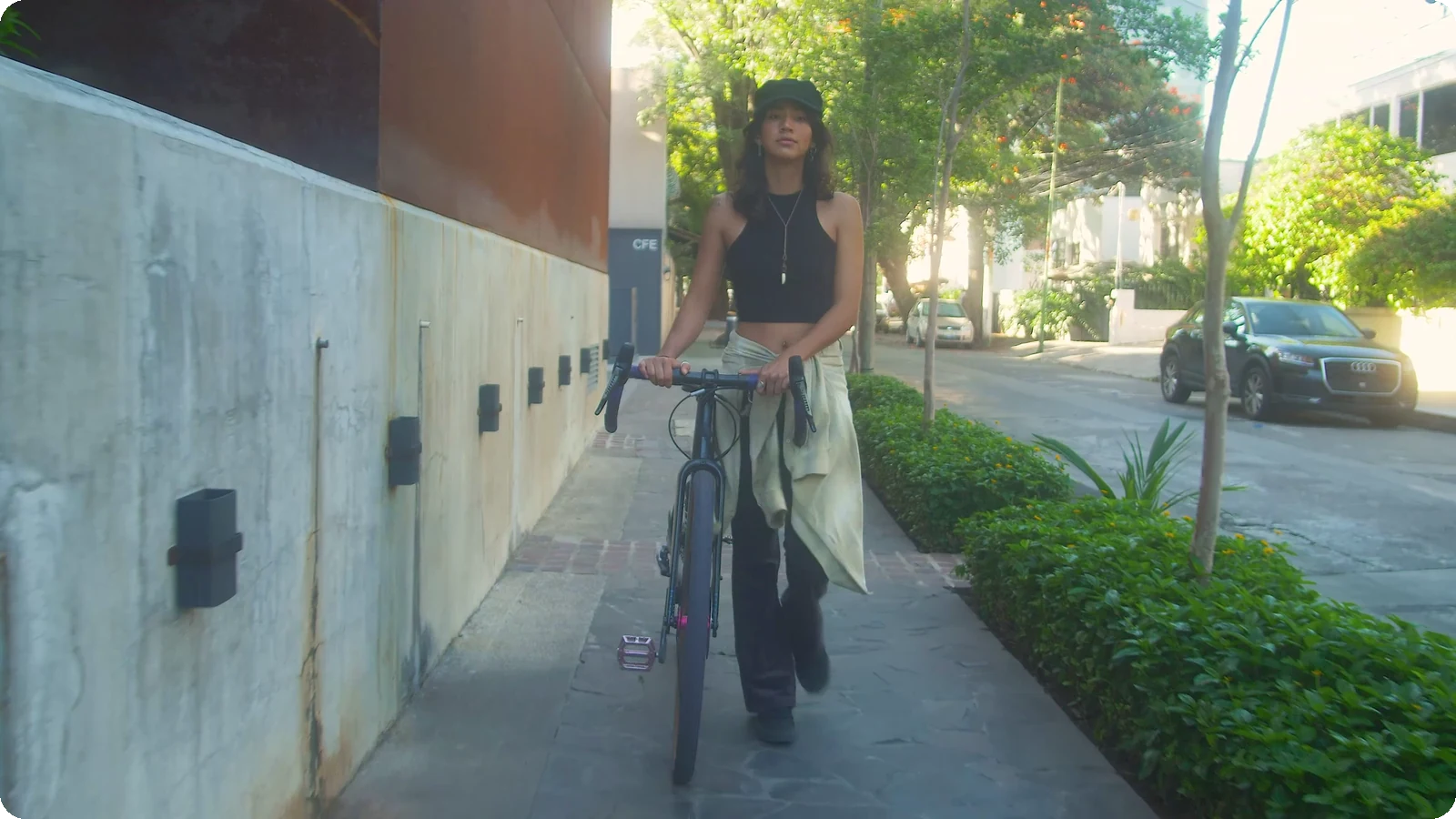
Every mismatched format gets a blurred background, an AI-tracked crop or a stretch — never an ugly black bar.
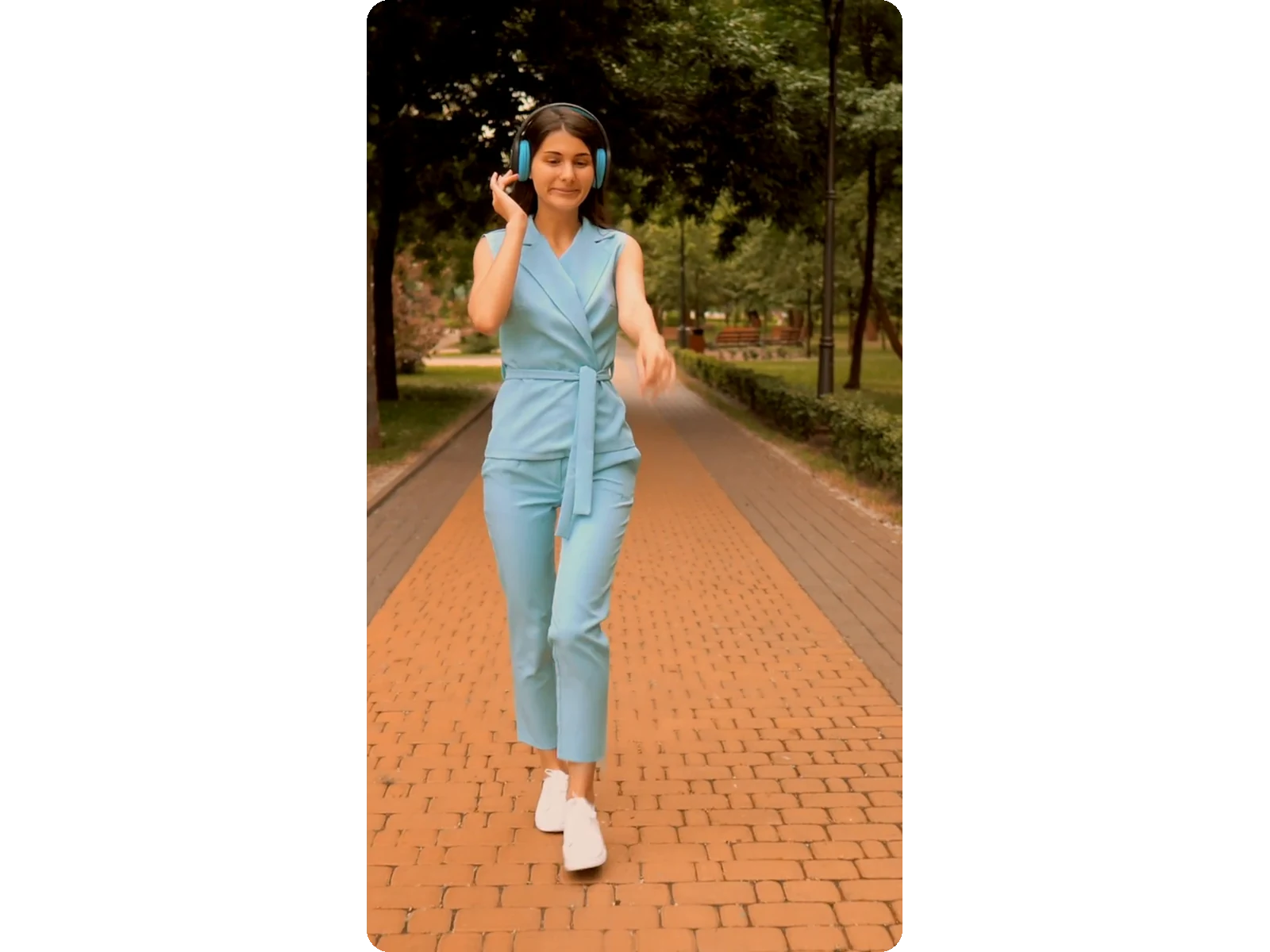
When you crop to a new shape, the same AI tracking engine that powers our Clips and Video-to-Shorts tools keeps the main subject centered automatically, never cut off.
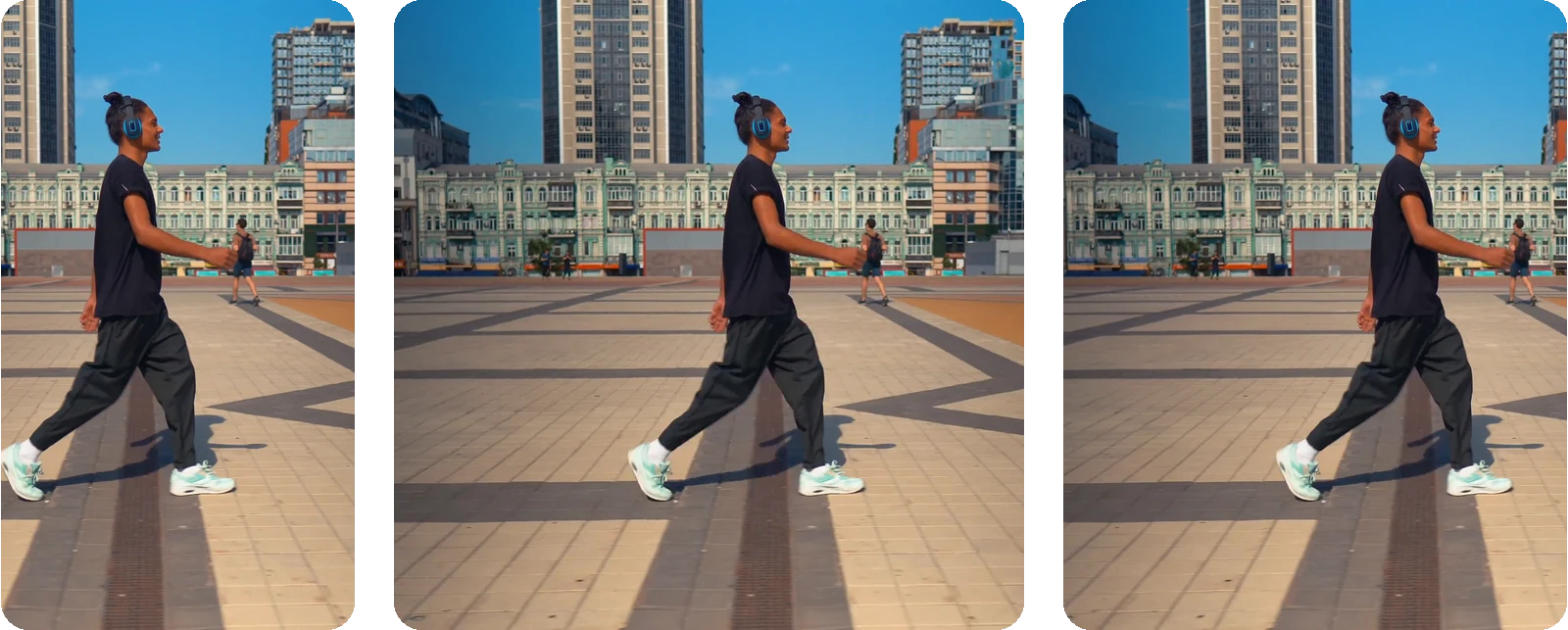
Choose 1080p, 720p, 480p or 360p, or enter a custom width and height. With Automatic resolution, Klipa delivers the best quality available on your plan, in the standard format for the selected platform.
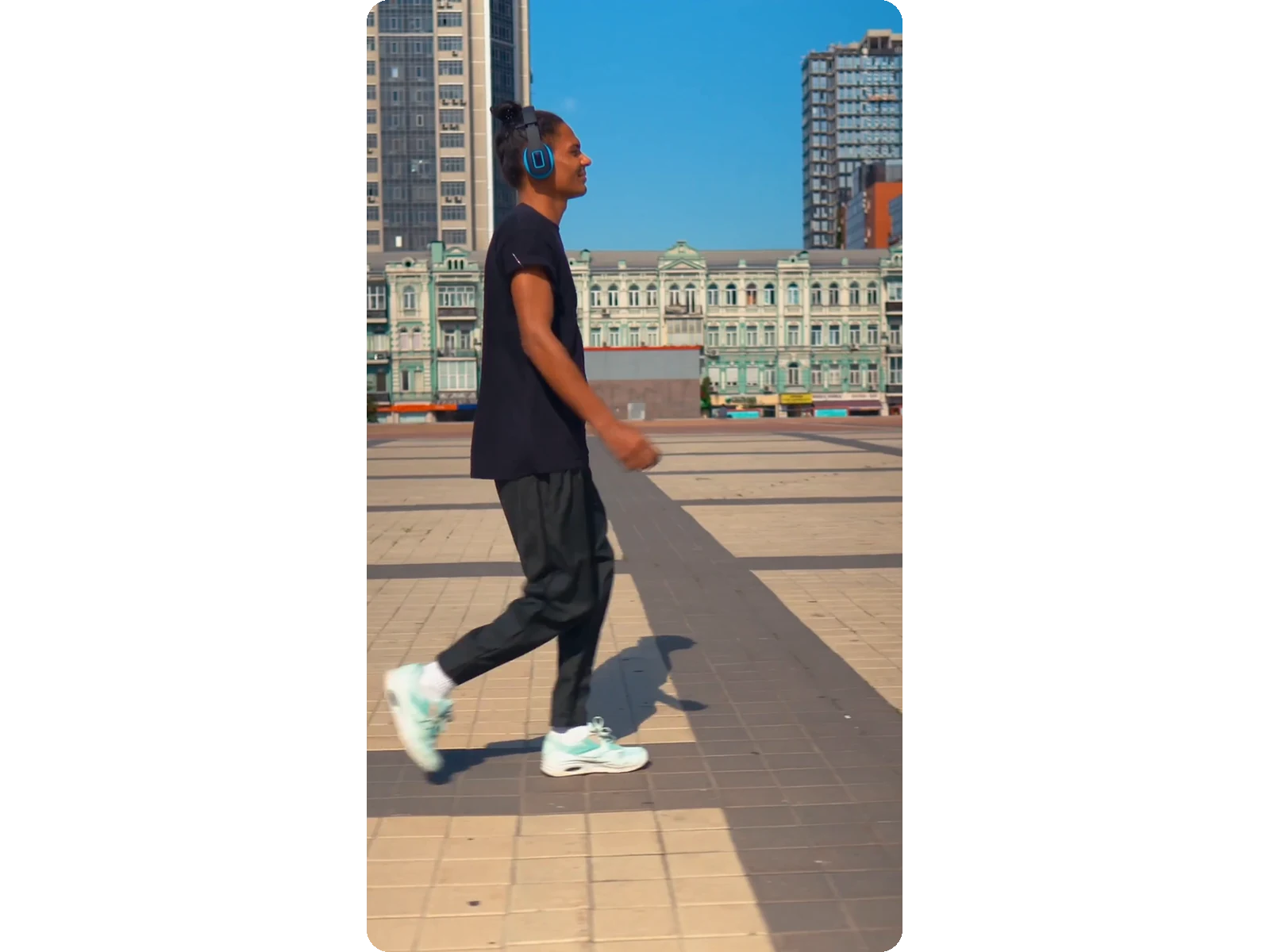
Everything runs online in your browser: upload, adjust, download. Nothing to install.
4K is overkill for most online uses: resizing to 1080p or 720p lightens the file with no visible loss on a phone or laptop screen.
An export in the wrong shape can leave the picture squashed or elongated. Enter the original dimensions as a custom size, then choose Stretch: the picture is brought back to those dimensions, width and height together, without going back to the original editing software.
Some edits play on a deliberately stretched or distorted look — filler clips, comedy edits, an aesthetic choice. Stretch mode distorts the picture so it fills the chosen format exactly, with no bars and no cropping.
Ad campaigns often require the same creative in multiple dimensions: 9:16 for Stories, 1:1 for feed placements, 16:9 for YouTube pre-rolls. Resize your ad once for each placement instead of re-exporting from your editor. Pair it with automatic subtitles so your message is clear even with sound off.
Most video today gets watched on a phone screen, not a desktop monitor. Resize your videos to 720p or 480p for faster loading on mobile connections without a noticeable quality drop. After resizing, compress the file to shave off even more bytes and deliver a smooth viewing experience.
Upload your video (MP4, MOV, AVI, MKV or WebM, up to 2 GB), choose a target resolution or aspect ratio, and export. Klipa runs entirely online with no software to install — the resized file downloads in seconds, ready to publish or send.
Not unless you choose to. Fit keeps the whole picture on a blurred background, and Fill uses AI to crop around your subject — both keep proportions intact. Stretch is the only mode that deliberately distorts the frame, and it's there on purpose: to fix already-squished footage or for a stylized stretched effect.
Choose 1080p, 720p, 480p or 360p on any format (9:16, 1:1, 16:9 or 4:5), or enter a width and height in pixels for a custom size — each side is brought to an even number, as video encoding requires. The live preview shows the final frame before you export, so there are no surprises.
Resizing changes the overall dimensions without distorting the picture, using a blurred background or an AI-tracked crop. Stretching is different: the picture is squashed or elongated to fill the chosen format exactly, either to fix a video exported in the wrong shape or for a deliberately distorted, stylised look.
Not necessarily. Resizing lowers file size mostly as a side effect of a smaller resolution. If your video's dimensions are already fine and it's simply too heavy to upload or send, use our video compressor instead — it shrinks the file at the same resolution, with no watermark.
Resizing can output a larger frame, but it can't invent detail that isn't there — scaling past your source resolution just stretches existing pixels. With Automatic resolution, Klipa delivers the standard format for the selected platform, at the best quality available on your plan.
MP4, MOV, AVI, MKV and WebM are all accepted, with files up to 2 GB. Whatever you upload, the resized video exports as a clean MP4 — the format every platform and player accepts — so there's no extra conversion step before you publish or send it.
Yes: the resized video carries the Klipa logo. To download it clean, with no logo, get a Pass for that video or a Pro plan.
Resizing changes the size of the whole picture while leaving its content untouched. Reframing changes what's inside the frame — it's what you need to turn a horizontal video into a vertical one for TikTok or Reels; try our AI reframing tool for that instead.

The Klipa editorial team · figures checked on October 13, 2026 You’re preparing a video for a different screen, and the editor offers a “stretch” option. Before you…

The Klipa editorial team · tested on September 29, 2026 A landscape video can become a vertical post in three different ways: stretch its pixels, fit the whole…

You’re about to upload a Reel that fills the screen perfectly, with every pixel sharp, no awkward crops, and a file size ready to post. Your video will look exactly…
1080p, 720p, 480p or a custom size — no distortion.
No credit card required
