

Flip a Video Online: Mirror It, Fix It, Keep It
Flipping a video means creating a mirror image of it: what was on the left moves to the right, and the other way round. Nothing turns, nothing tilts. This page opens with the Mirror button already switched on, so the moment your file is loaded, you are looking at the flipped version.
Flip and rotate are not the same thing
People use the two words for each other, but the results differ. Rotating turns the whole picture around its centre, by a quarter turn or a half turn, like turning a photo on a table. Flipping builds the reflection, like holding the picture up to a mirror. A rotated sideways clip is still a normal picture; a flipped clip has its left and right swapped. If your video is simply lying on its side, you want a rotation, not a mirror. If the writing in it reads backwards, you want the mirror.
When mirroring is the right fix
The classic case is the selfie. Shot with the front camera, a video can be saved the way the camera sees you, so a sign behind you, a shirt slogan or a shop front reads backwards. One click on Mirror and the lettering reads normally again. Dancers and sports coaches use it the other way: mirror a tutorial so that your right hand copies the instructor's right hand, instead of working it out in reverse. It also helps when you want a composition to face the other direction, for example so a person looks toward the text on a slide.
Flipping top to bottom, and combining
The tool offers four buttons: Rotate left, Rotate right, Flip 180° and Mirror. They combine. Turn a clip a quarter turn and mirror it, or use Flip 180° together with Mirror: the result is a vertical mirror, top and bottom swapped, left and right unchanged. A preview shows what you will get before you download.
What this tool does not do
In some languages, flipping a video also means playing it backwards, from the last second to the first. This tool does not do that: it changes the picture, not the order of the frames. It does not invent new edges or touch the sound either; the picture is reflected and nothing else changes. Your first try is free, with no signup.

What the tool produces
How to Flip a Video in 3 Steps
Upload Your Video
Drop an MP4, MOV, AVI, MKV or WebM file onto the page, up to 2 GB. A selfie, a dance tutorial, a screen recording: any clip works. Only need part of it? Trim it before flipping.
Check the Mirror Setting
Mirror is already on, which gives a left-right flip. Switch it off if you only want a turn. Add Rotate left, Rotate right or Flip 180° to combine, then read the result line and the preview.
Download the Flipped Video
Processing takes a few moments. Download the mirrored video and post it anywhere. It is free with the Klipa watermark; a Pass or a Pro plan gives you the clean file without it.
Why Flip Your Video With Klipa
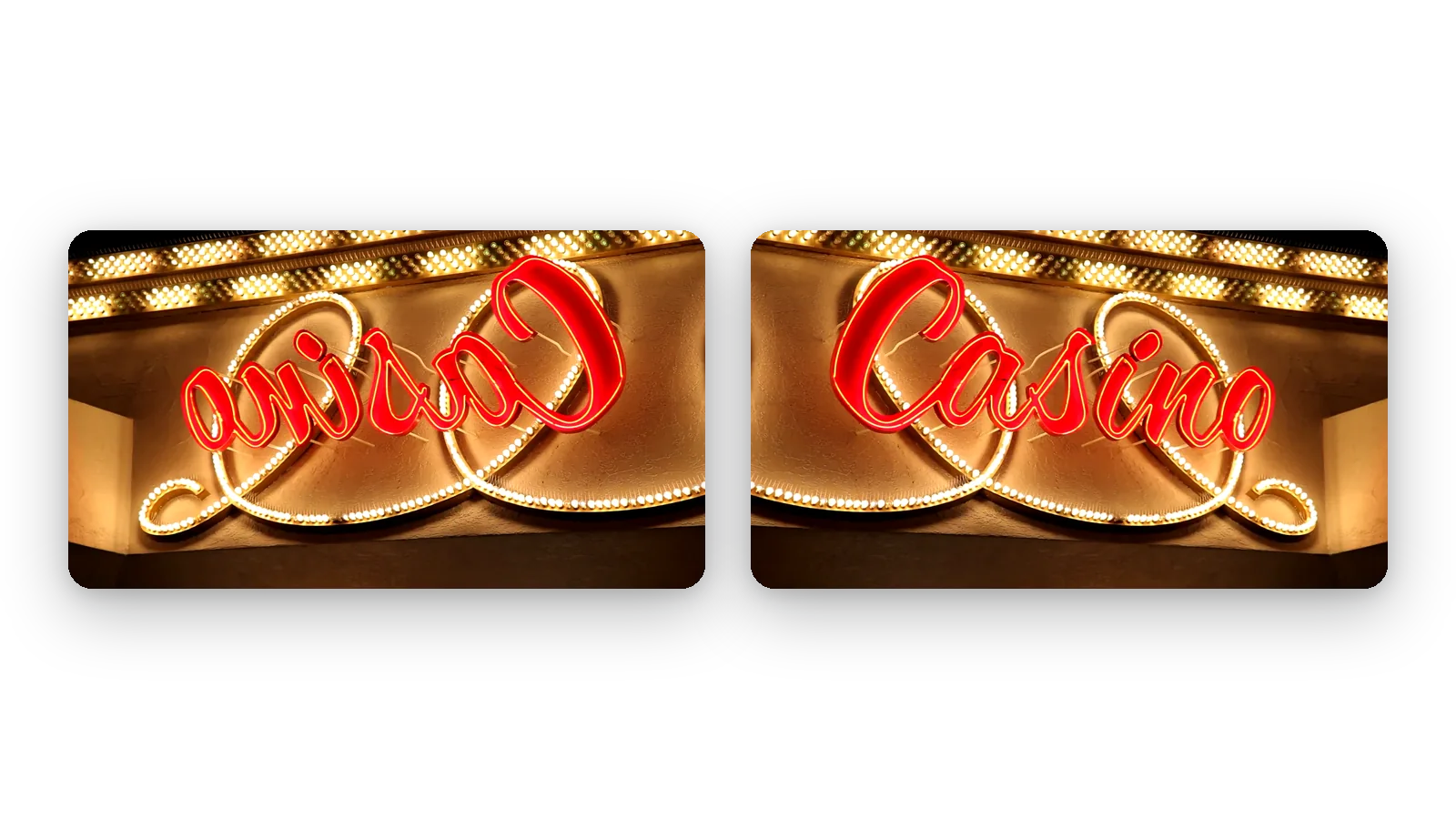
Readable text again
Words that appear backwards in a selfie, a sign or a T-shirt come out the right way round after one mirror. Nobody has to squint at reversed lettering, and the video looks as you remember filming it, with no editing skills needed.
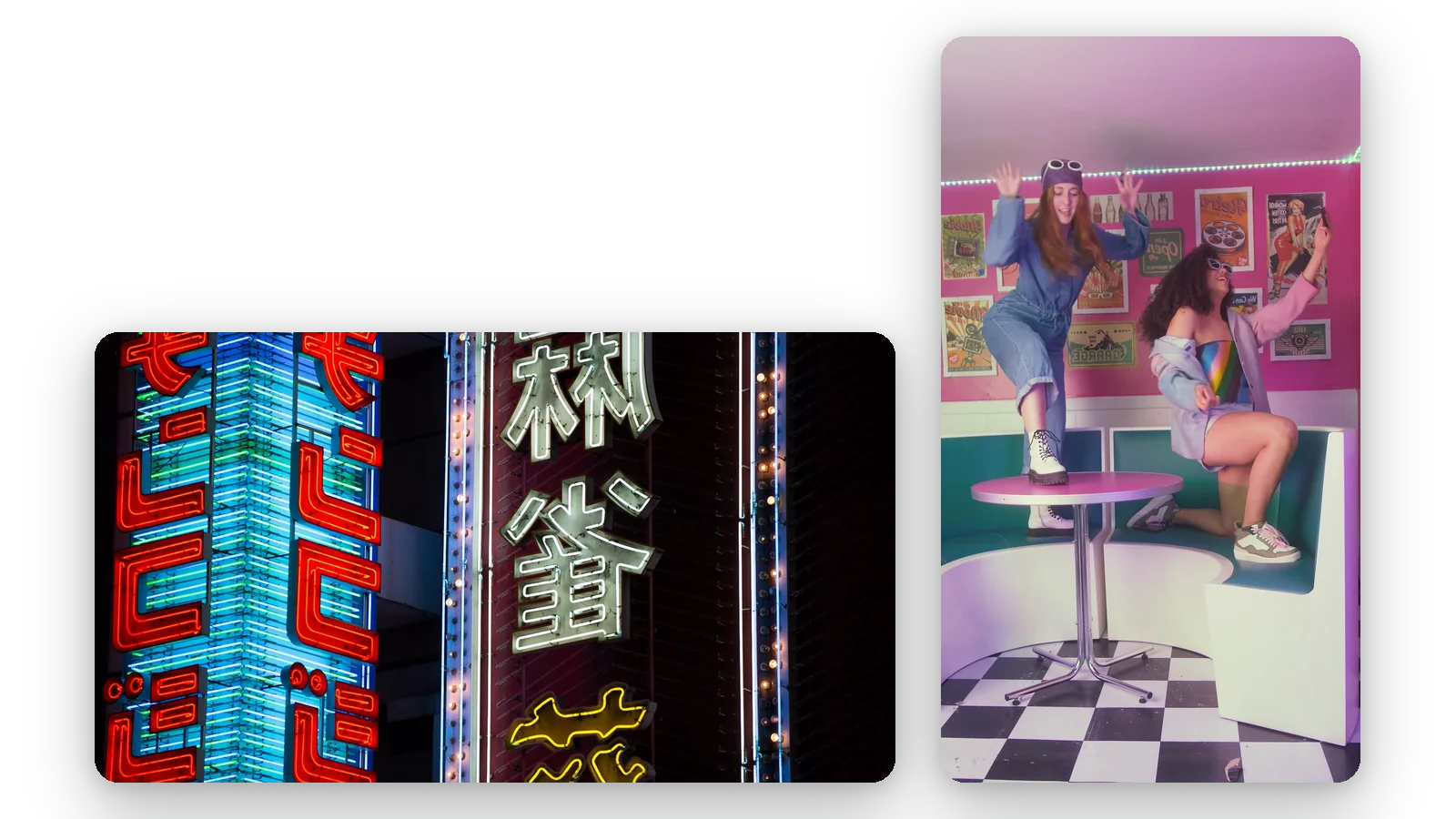
Horizontal or vertical
Mirror on its own swaps left and right. Add Flip 180° and the result becomes a top-to-bottom mirror. You choose the direction of the reflection yourself with the same four buttons, instead of hunting through menus or exporting the clip twice to try both versions.
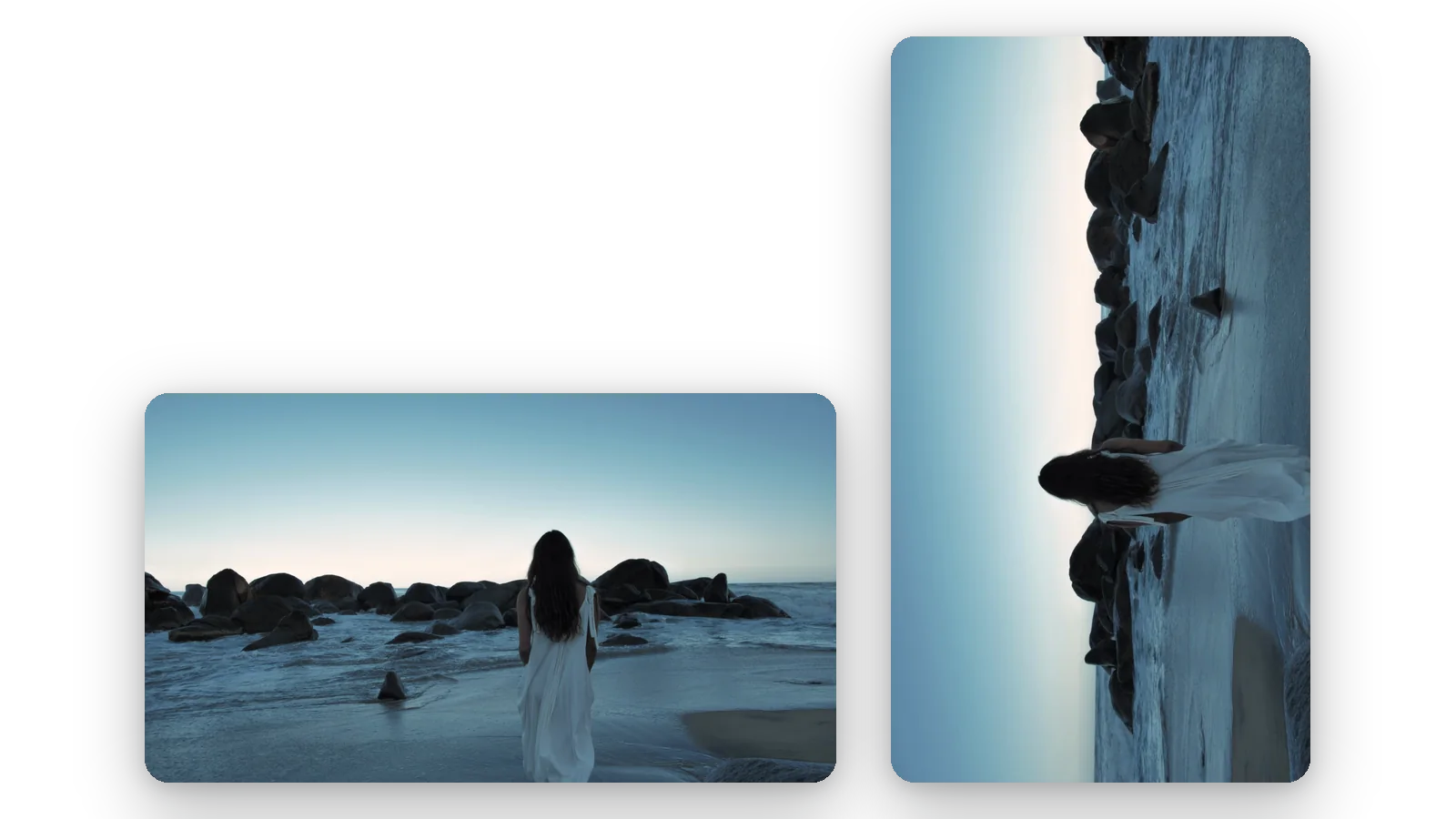
Mirror plus rotation
Real clips are often both sideways and reversed. Combine a quarter turn with the mirror in one pass, so you do not export, re-upload and process the same file twice. The preview shows the final orientation before you commit, and the result line names exactly what was applied.
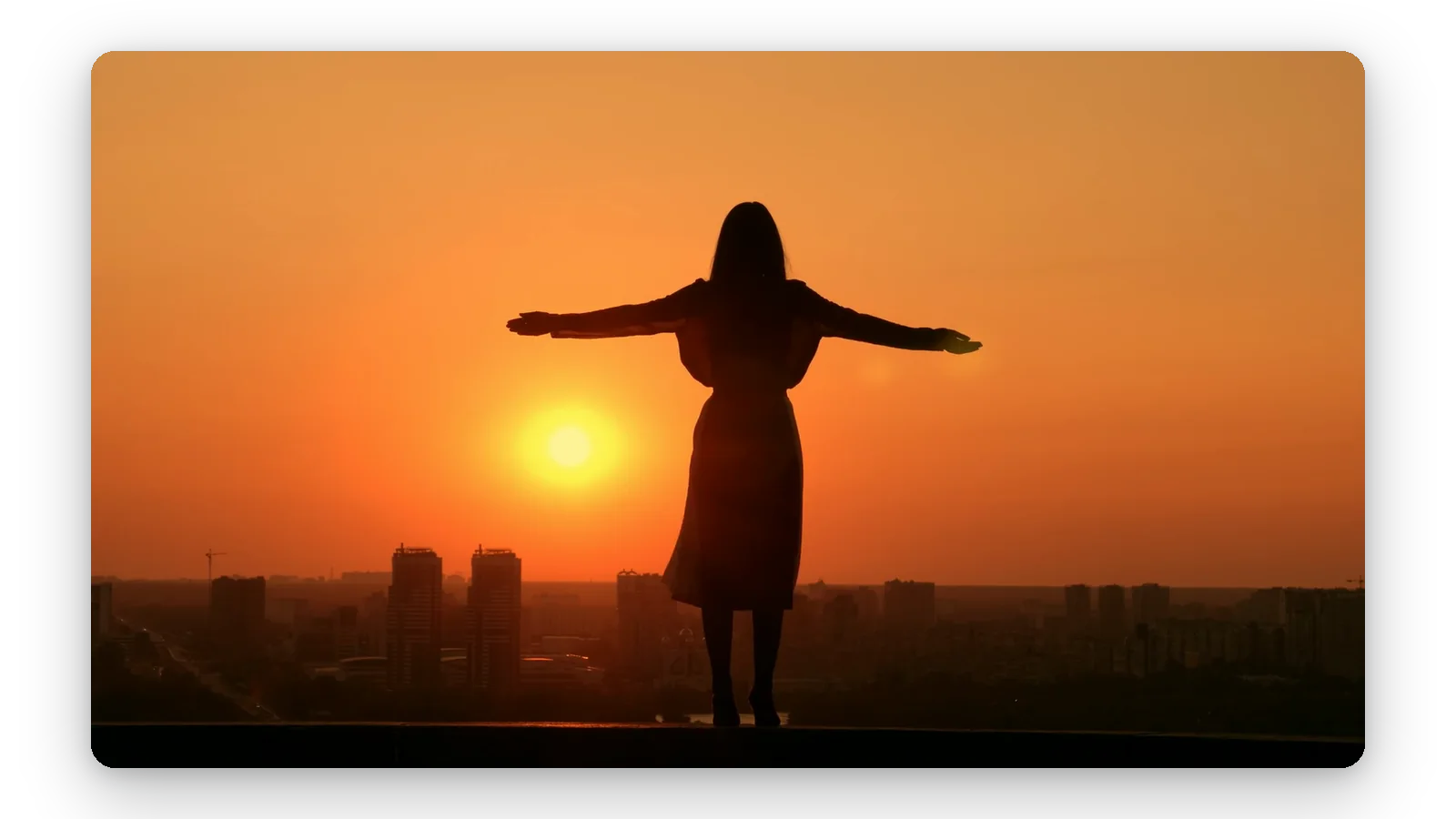
In your browser
Nothing to install and nothing to learn. Open the page, drop your file, download the result. Open the page in any browser and fix a clip right after you filmed it, without launching a heavy editing program just to reverse one picture.
WHEN PEOPLE MIRROR A VIDEO
Selfies with reversed writing
A clip filmed with the front camera shows a poster, a name tag or a storefront backwards. Mirror it once and the lettering reads properly, so viewers stop wondering what the sign says.
Dance and sports tutorials
Learners copy an instructor more easily when the video acts like a mirror in the studio. Flip your demonstration so that your right side matches the learner's right side, then share it with your class.
Facing the other way
Sometimes the composition just works better reversed: a speaker who should look toward the caption, a product that should point into the page. Mirror the clip to turn the subject toward the empty space.
Upside-down footage
A camera mounted upside down saves clips with the sky at the bottom. Use Flip 180° to correct it, and add Mirror if the picture also came out reversed from left to right.
Matching clips from several cameras
When two clips of the same scene face opposite ways, mirror one so subjects move in the same direction in the final edit. Cuts between them then feel natural instead of jarring.
Related Tools
Frequently Asked Questions
Where do I mirror a video without installing anything?
Upload your file to this page. The Mirror button is already on, so you get a left-right flip straight away. Check the preview, then download the result. There is nothing to install, and your first try is free, with no signup.
Flip or rotate: which one should I pick?
Rotating turns the picture around its centre, by 90° or 180°. Flipping, or mirroring, creates a reflection that swaps left and right. A video lying on its side needs a rotation. A video whose text is backwards needs a mirror. The tool offers both.
Can I flip a video vertically?
Yes. Switch on both Flip 180° and Mirror. The half turn reverses everything, and the mirror puts left and right back where they were, so the net result is top and bottom swapped. The preview shows it before you download, and you can switch either button off to compare.
My selfie shows backwards writing: how do I fix it?
If the writing in your selfie reads backwards, load it here and keep Mirror on. The left-right swap restores the normal reading direction. If the clip is already correct and you want the opposite effect, switch Mirror off and use only the rotation buttons you need.
Will mirroring make my clip play in reverse?
No. Mirroring changes the picture, not the time order. The video still plays from start to finish, only reflected. This tool does not play a clip backwards, so look for a dedicated reverse option if that is what you need.
Can I mirror a clip from my phone?
It is a web page, so you open it in your phone's browser like any other site, with no app to install. Pick the clip, check the preview and download the result as a normal video file. Then you can post it from your phone, share it or keep it.
Can I mirror a YouTube video?
The tool starts from a file that you upload. If the video is yours, import the original file and mirror it. Videos that belong to someone else are not yours to republish, so check you have the right to reuse them first.
Will my flipped video carry a watermark?
Your first try is free, with no signup. The free download carries the Klipa watermark. For a clean file without it, buy a Pass or use a Pro plan. Either way, you see the result in the preview before deciding whether to download the file.
Does a mirrored clip look worse afterwards?
The loss is negligible: the clip is re-encoded with high-quality settings. The picture is reflected, not cropped, so you keep the same framing. Rotating by a quarter turn swaps width and height, whereas mirroring alone leaves the dimensions of the picture as they were.
Which formats can I upload?
MP4, MOV, AVI, MKV and WebM, up to 2 GB. The result is a standard video file, ready to post on any platform, to send in a message, or to keep as the corrected version of your original footage.
Ready to flip your video?
Instant, first try with no signup.
No credit card required
Mirror it, rotate it, then send it
A mirror fixes reversed lettering, while a quarter turn fixes a clip lying on its side. When you only need the turn, use the video rotator. Once the orientation is right, adapt the shape of the picture to the platform you are posting on with the video resizer, and your clip is ready to reach your audience wherever they happen to be watching.
