


How to Compress Video for Facebook Without Quality Loss
Picture this: you’ve spent hours editing a video. The colors pop, the audio is crisp, and every transition is smooth. You hit upload on Facebook. And then disaster…
Making a video fit Facebook starts with where it will be seen. This page opens on 4:5, the tall portrait shape that suits the feed on a phone, and lets you move to 1:1, 16:9 or 9:16 for the other places a video can live: a square post, a widescreen clip, Reels and Stories. Whatever you upload, the extra room is never plain black bars.
Searches around Facebook video size are scattered because the platform shows videos in several ways. People ask for the best aspect ratio, whether a 16:9 video can be posted, and what the size should be for Reels, Stories or an ad. The honest answer is that it depends on the placement, and that Meta updates its guidance. For the current recommendations, read the Business Help Center of Meta. Klipa's role is practical: it lets you produce the shape you decided on, quickly, without opening an editing program.
A clip seldom matches the shape you need, so the real choice is what to do with the gap. Fit contains the whole video and lets a blurred, enlarged copy of the footage fill the free space: every pixel of your picture stays and its proportions are untouched. Fill covers the entire frame instead; the picture is enlarged, the overflow is cut and the AI follows the main subject so it stays in the shot. Klipa preselects the likelier option for your video, and you can switch while the preview updates. Stretch forces the picture into the exact format by distorting it, so it is best kept for undoing a squashed export.
Campaign briefs often ask for the same video for several placements. Upload it once, produce one version per shape (4:5, 1:1, 16:9 or 9:16) and compare them in the preview before downloading.
Changing the frame does not sharpen footage: a low-resolution clip is still low resolution after it is enlarged. It is also not the tool for slimming a file; if Facebook refuses your upload because of its weight, compress it. If your goal is a landscape video converted into a vertical edit with automatic subject tracking, use Video to Shorts. On this page, you stay in charge of the frame.

Choose a file on your phone or computer. The tool reads MP4, MOV, AVI, MKV or WebM files of up to 2 GB, whether the clip is landscape, portrait or square.
The page opens on 4:5 for the feed. Change to 1:1, 16:9 or 9:16 if you are targeting something else. Then choose Fit or Fill; Klipa preselects one, and you can swap it.
Run through the preview to check that nothing important is cut off, then download the MP4 and post it to Facebook from your phone or your computer.
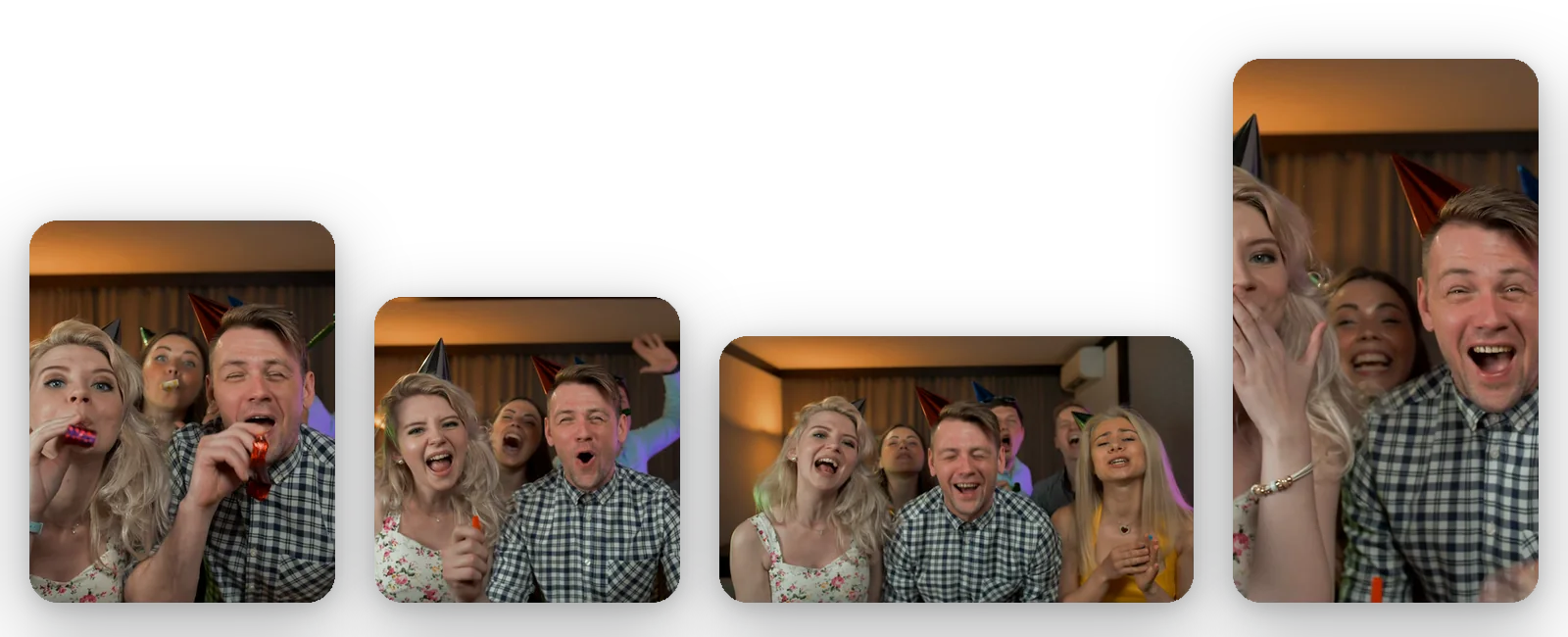
Feed, square, widescreen, Reels and Stories do not want the same frame. 4:5, 1:1, 16:9 and 9:16 sit side by side in the same list, so you can produce each version from a single upload, compare them one after the other and keep only the ones you need.
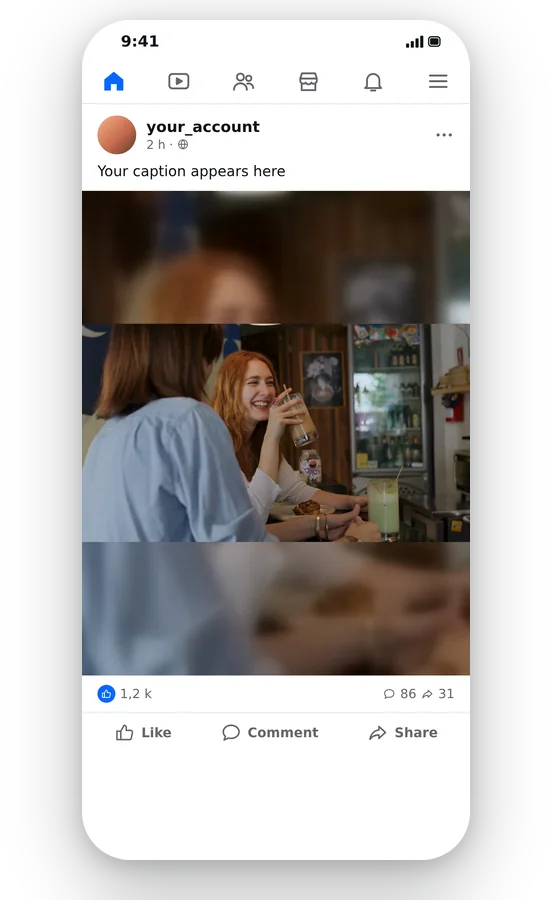
If your footage does not match the chosen shape, Fit surrounds it with a blurred, enlarged echo of itself. The space reads as part of the scene instead of a dead zone, and your original proportions are fully preserved, which keeps faces and text looking natural.

Choose Fill when you want the picture to take over the screen. The AI tracks the person or object that matters and keeps it inside the frame, so only the outskirts of the scene are given up when the edges are cut.
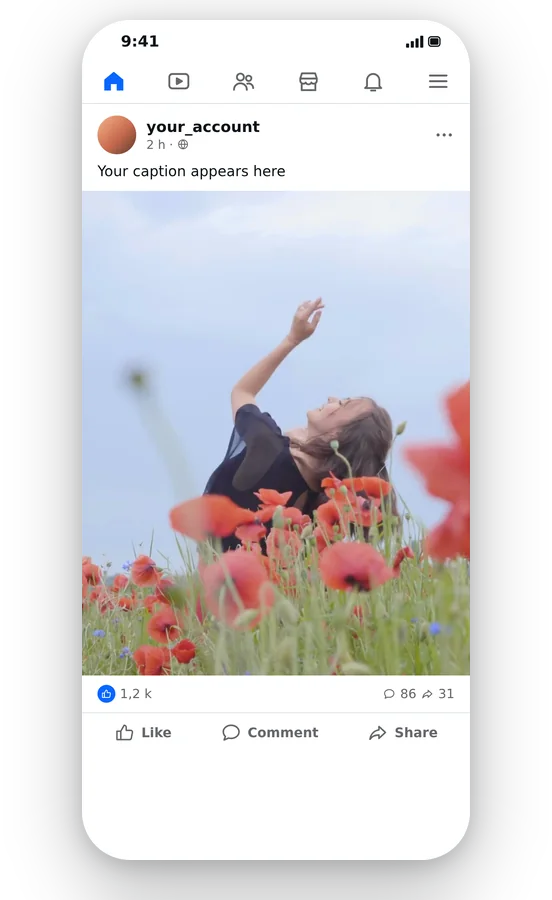
There is nothing to install: everything runs in the browser on a phone or a computer. You see the preview, then export a plain MP4 that Facebook and most other tools accept, with no further conversion step.
A landscape video can look small in a phone feed. Move it to 4:5 and decide between the whole picture on a blurred backdrop or a crop that fills the screen, then compare both in the preview.
A video that is already 16:9, such as a recording or a trailer, may need nothing more than a correction of a few odd dimensions. Pick 16:9, keep Fit, and export a file with a consistent frame.
Switch to 9:16 for a vertical version. Fit keeps the whole scene, Fill follows the subject. A page owner can turn one recording into a feed video and a Reel without filming anything again.
A square is a neutral shape that works for a quick post. Select 1:1, keep Fit if every part of the scene counts, or Fill when the subject is central and the edges are expendable.
When a marketing brief asks for several placements, choose the shape of each one, for example 4:5 for the feed and 9:16 for Stories. You export one version per shape and can verify the framing in the preview before sending it on.
Upload the video, keep 4:5 for the feed or choose 1:1, 16:9 or 9:16 for another placement, then pick Fit or Fill. Look at the preview and download the MP4. The whole process happens online, with no software to install.
It varies by placement and Meta changes its recommendations, so Klipa does not quote a figure here. Read Meta's Business Help Center for the current guidance, decide on a shape, and select it on this page. The page offers 4:5, 1:1, 16:9 and 9:16.
Facebook accepts videos in more than one shape, and this page lists 16:9 among its formats. If you want to keep a widescreen look, select 16:9. If you prefer a taller picture for phones, switch to 4:5 and choose between Fit and Fill.
There is no universal answer: it depends on whether the video goes to the feed, to Reels or to Stories, and on the audience. This page opens on 4:5 for the feed, and you can compare 1:1, 16:9 and 9:16 in a single session before choosing.
Use Fit. Nothing leaves the frame: your video is contained whole, and the extra room takes on a blurred, zoomed echo of the clip, so no part of the scene is lost. Fill is the reverse, a deliberate crop so the picture reaches all four edges.
Changing shape sometimes shaves weight off a file, but only as a by-product. When Facebook turns away an upload because it is too big, the right fix is the video compressor, which lowers the size without touching the dimensions. Frame problems belong on this page; file problems belong to the compressor, and you can use both on the same clip.
Fit shows the entire scene with a blurred backdrop, which helps when every detail matters, such as text on a screen. Fill takes up the whole vertical frame and follows the subject, which suits a person talking. Try both and compare them in the preview.
No. A different frame does not create detail that the camera did not capture, and enlarging past the source resolution only spreads its pixels. Begin with the best original you have, not a copy that was already compressed, then resize that one.
Yes: the resized video carries the Klipa logo. To download it clean, with no logo, get a Pass for that video or a Pro plan. Testing the page, comparing Fit with Fill and checking the result in the preview is free, whatever you decide afterwards.
Choose Video to Shorts when you want a horizontal video reframed vertically with the subject followed automatically. Choose this page when you want to pick the Facebook shape yourself and decide whether the picture is kept whole on a blurred backdrop or cropped to fill.
Feed, square, widescreen, Reels or Stories: one upload, the shape you need.
No credit card required
Facebook shows videos in several places, so prepare the shape that fits your goal. Start from 4:5 or switch format, pick Fit or Fill, review the preview and download the MP4. When the result is still heavy to upload, the video compressor can slim it down afterwards. For a landscape clip that must become vertical with the subject tracked, Video to Shorts is quicker. Meta's own help pages remain the reference for current Facebook specifications, which can change from one year to the next.
