


How to Cut a Video on Snapchat in Under a Minute
You filmed a 45-second Snap, but only the middle 14 seconds are worth posting. The rest is dead air, a blurry pan, or your friend making a weird face. How to cut a…
Snapchat opens on a tall, full-screen canvas, and a video shot or edited for a computer screen does not belong in it. Send a 16:9 clip as it is and it appears as a narrow band, or the app makes choices for you about what to cut. Resizing a video for Snapchat means preparing it yourself, in vertical 9:16, so that you decide what the viewer sees. This page opens directly on that format.
Snapchat's business help describes a full-screen canvas of 1080 by 1920 pixels, a 9:16 ratio, for its single image or video ads (source: businesshelp.snapchat.com). It is the shape of the whole app, and it answers the question many people type into Google: yes, Snapchat is 9:16. Limits such as length or file weight depend on where you post and change over time, so no figure is set here for ordinary Snaps. Check the app for the current ones.
Putting a horizontal video into a vertical frame always forces a trade. With Fit, nothing is removed: the video sits in the middle and the space above and below is filled by a blurred extension of the clip. With Fill, the video is enlarged until no space is left, the AI keeps the main subject in view, and the sides that do not fit are cut. Stretch bends the picture to fit the frame, and is mostly there to repair footage that was exported squashed. A mode is recommended according to your content, and you can override it.
People often ask why Snapchat makes a video smaller. When the shape does not match the screen, the picture occupies only part of it, so it looks small. Fixing the shape fixes that effect. Quality is another matter: a low-definition source stays soft once reshaped, since no tool can recreate detail the camera never captured. If your problem is weight instead, the compressor is the tool for the job.
Phone recordings and files from other sources are all fine, and what comes back is an MP4. Look at the live preview, download, then post from your phone's gallery.

Select the clip in your phone's library or on your computer, or drop it here. Horizontal, square or already vertical, all work. The largest accepted file is 2 GB.
The page begins on vertical 9:16. Try the recommended mode, then Fit, Fill or Stretch if you prefer another result, and choose a resolution. The preview updates so you can judge the Snap before downloading.
Save the MP4 to your device and add it to a Snap or a Story from the camera roll. The free download has the Klipa logo, and a Pass or a Pro plan removes it.
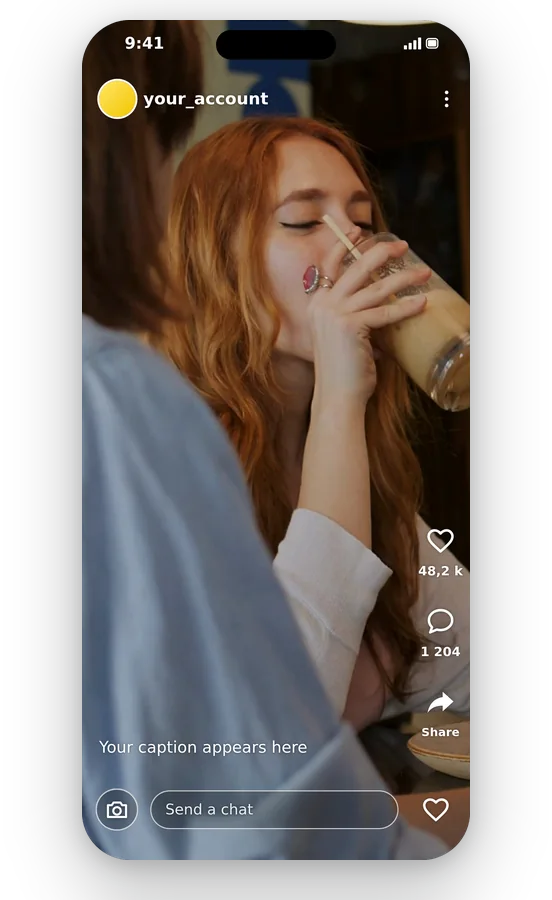
A horizontal clip shown in a vertical app looks lost in the middle of the screen. Reshape it first and the empty areas give way to a blurred extension of the footage, or to a crop that covers the frame: the Snap then looks designed for the app.
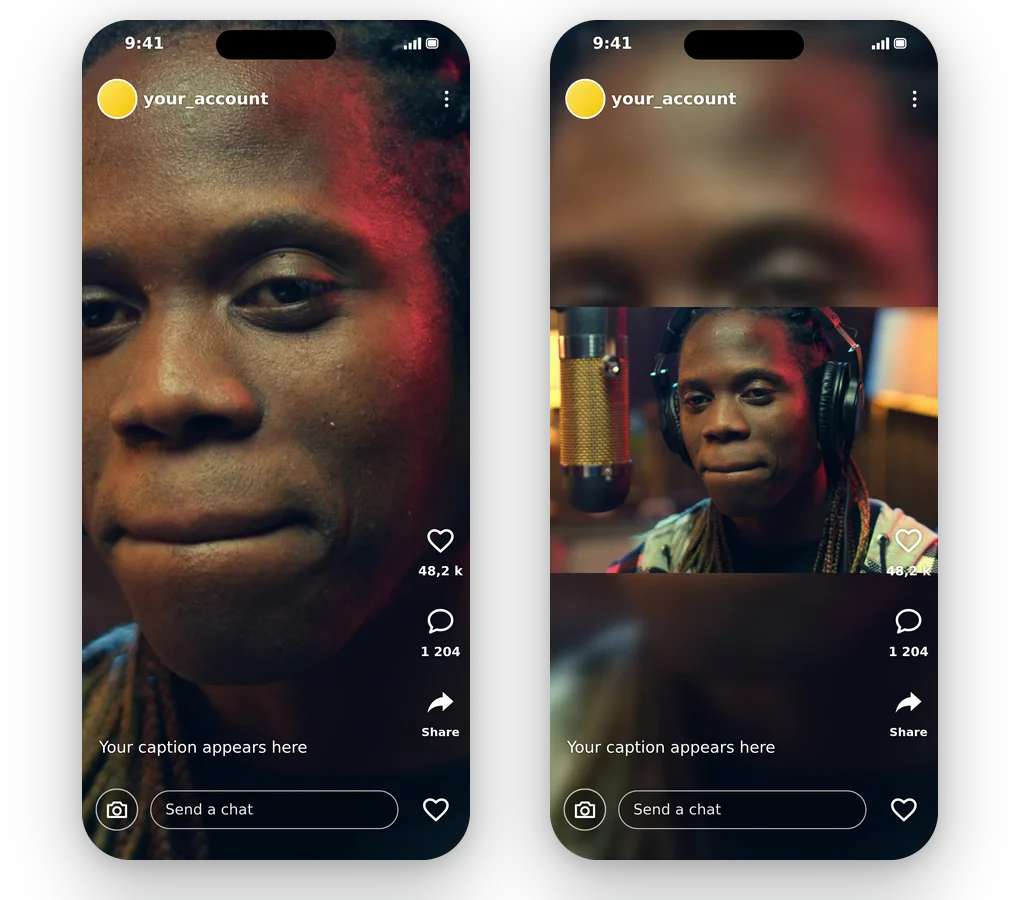
Left alone, an app crops where it likes, often through a face. Here the subject is followed when you choose Fill, and when you choose Fit nothing is cut at all. Both are visible in the preview before you commit, so there is no guesswork about the final result.
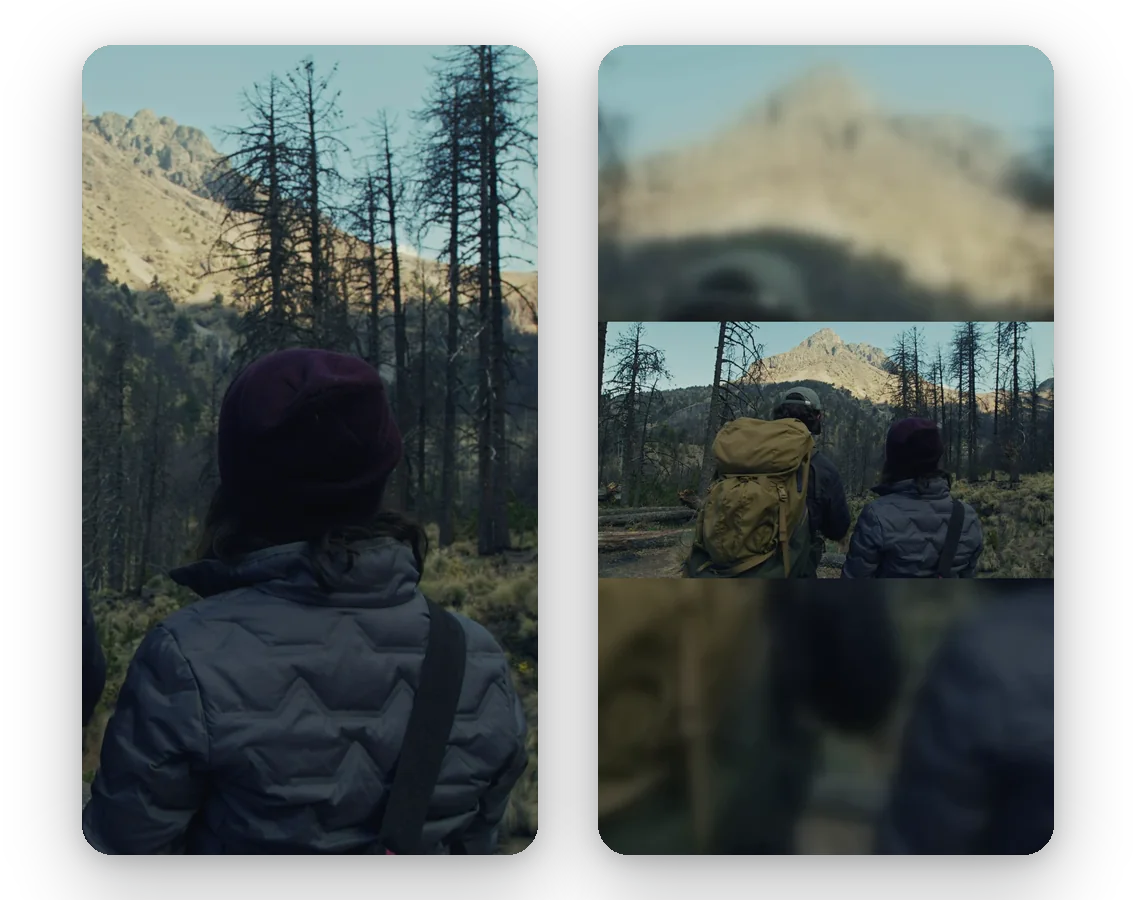
You can keep a single horizontal original and make a full-screen version for Snapchat, then a different one for another app, without opening an editor. Each try takes a few moments, and your original is never modified, so you can start over whenever a result disappoints you.
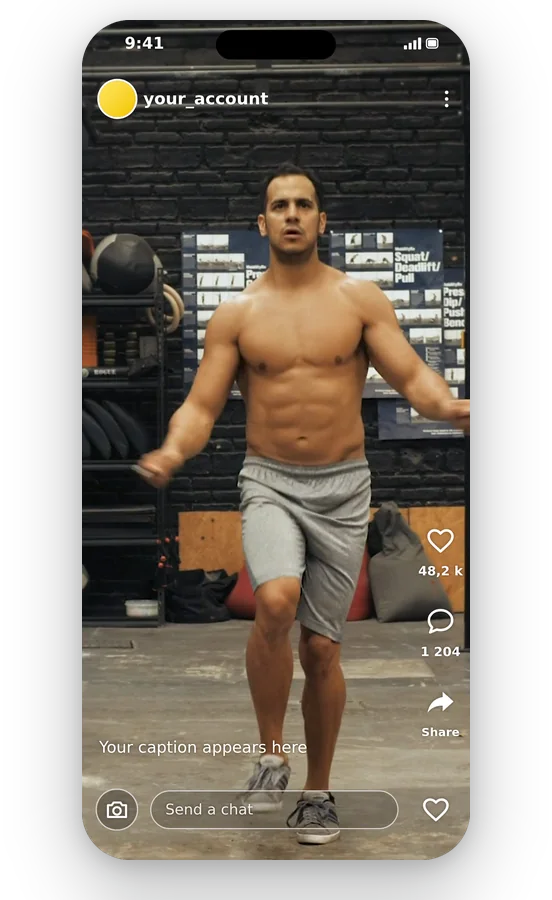
The whole operation takes place on a web page, in your phone or computer browser. There is no extra app to download, and the output is a plain MP4 that every gallery and every app understands.
Footage from a camera, a drone or a sports camera is wide by nature. Fill gives a full-screen Snap with the action kept in view, while Fit keeps the entire landscape, useful when the scenery is the point.
A presentation, a short film or a recorded lesson edited in 16:9 can still go on Snapchat. Reshape it to the vertical frame instead of re-editing everything in a timeline.
When you assemble a Story from clips of different shapes, bring each one to 9:16 first. The sequence then plays without sudden jumps from full-screen to a small strip.
A 1:1 clip prepared for another app looks small on a tall screen. Fit gives it a blurred surround, and Fill enlarges it to the full height with the sides trimmed.
A shop or a creator who already has a horizontal product film can reuse it for a vertical audience. Resize it once, check the preview, and the same footage serves both screens.
Yes. Snapchat is a vertical, full-screen app, and its business help describes a 9:16 canvas for ads (source: businesshelp.snapchat.com). A 9:16 video therefore fills the screen without bars. This page starts on that format, and the only thing left to choose is the fill.
Add the video and stay on 9:16. Choose Fit to preserve the whole 16:9 picture over a soft backdrop, or Fill to enlarge it to full height, trimming the sides, with the subject tracked by the AI. Check the preview, then download the MP4.
Usually because the video is not vertical: a 16:9 clip occupies only the middle band of a tall screen, so it looks reduced. Changing its shape to 9:16 before posting removes that effect. If the picture is still soft, the cause is the source resolution.
Yes, with Fit. The whole video remains visible and the leftover space is filled by a blurred extension of the clip. The trade-off is that the picture takes less of the screen than with Fill, which gives full-screen at the cost of trimmed sides.
Shape and weight are two separate matters, and Klipa's resizer handles only the first. Should the file be heavy or lengthy for the app, shorten it with our video cutter, then shrink it with the compressor. A resize alone lightens a file only as a by-product.
No. A new frame cannot add detail that the camera never recorded, and a resolution above the source's merely spreads the pixels that exist. For crisper Snaps, begin with the best original you own, then reshape it here. That is true of every tool, here or elsewhere.
Fill looks most natural when a person or object sits near the centre, because the subject stays framed and the screen is full. Fit is better when the whole scene must stay in view, such as a landscape or a group. The page recommends one, and you can still switch.
Files up to 2 GB in the usual video types are taken: MP4 and MOV from phones, plus AVI, MKV and WebM. What you download is an MP4, so nothing needs converting before you add it to Snapchat. Nothing to rename.
The free download is delivered with the Klipa logo. To get the video without it, take a Pass for that video or a Pro plan. The preview and the whole process can be tried before you decide, so you can judge the result first.
Video to Shorts follows the subject automatically to make a horizontal video vertical, with no setting to choose. Choose this page when you want to decide yourself how the picture meets the 9:16 frame: whole with blur or cropped to fill.
A vertical 9:16 frame, whole or filled, free to try.
No credit card required
Getting a video ready for Snapchat takes about a minute: stay on 9:16, decide whether the picture stays whole or fills the screen, look at the preview and download. If the clip outlasts what the app allows, trim it first with the video cutter. If you would rather have the subject followed with no setting at all, the video to Shorts tool does that. Your original file stays untouched whichever way you go, so you can try another version afterwards and keep the one that looks best on your phone.
