

One video, the right frame for a professional feed
A video that was edited for a presentation room or a company website rarely lands well in a social feed. It is wide, it has margins, and the text sits where a thumb scrolls past. Resizing a video for LinkedIn means choosing a frame on purpose: square, landscape or vertical. This page opens on 1:1, the square format, and lets you change to 16:9, 9:16 or 4:5.
What LinkedIn's own help page lays out
LinkedIn's help page on video specifications for Pages accepts aspect ratios from 1:2.4 to 2.4:1, a resolution from 256 by 144 up to 4096 by 2304, and videos from 3 seconds to 10 minutes, with a file of up to 5 GB. It also says that AVI, QuickTime and MOV files are no longer supported (source: linkedin.com/help/linkedin/answer/a1311816). So 16:9, 1:1, 4:5 and 9:16 all fall inside the accepted range, and the choice between them is a creative one, not a technical constraint. Specifications can change, so check that page for a campaign.
Why the MOV warning matters
Screen recordings and phone clips are often MOV files, and some editors export AVI. Upload either one here and what you download is an MP4, a type LinkedIn's page lists as supported. Resizing and converting happen in one pass, so you do not have to find a separate converter.
Choosing between square, landscape and vertical
Square 1:1 gives a compact, balanced block in the feed and works for a talking head or a slide. Landscape 16:9 suits a recorded talk or a product demo that already has that shape. Vertical 9:16 takes the most height on a phone. Then comes the question of what happens to the picture. Fit keeps the whole frame, with a blurred extension where space is left, so a slide with text is never cut. Fill crops to the frame and follows the main subject, which suits a speaker. Stretch deforms the picture and is for repairs only.
Before you post
Resizing does not trim the video or reduce its weight, and it cannot sharpen a blurry recording. Use the cutter or the compressor for those jobs.

What the tool produces
How to resize a video for LinkedIn
Upload your video
Select the recording from your files or phone library, or simply drop it on the page. A webinar excerpt, a demo or a quick phone clip all qualify. The largest file accepted is 2 GB.
Pick the frame and the fit mode
The page opens on square 1:1. Switch to 16:9, 9:16 or 4:5 when the post calls for it, then keep the suggested mode or pick another. Set the resolution, and the live preview shows the frame.
Download and attach it to your post
Save the MP4 and attach it as you write your LinkedIn post. A free download is stamped with the Klipa logo; a Pass or a Pro plan delivers the file with no logo.
What a prepared video does for your post

A frame chosen for the feed
Instead of letting a wide clip sit as a thin strip, you decide how much of the screen it uses. Square or vertical formats take up more room on a phone, and landscape stays right for a talk. The choice is yours, and the preview shows each one.
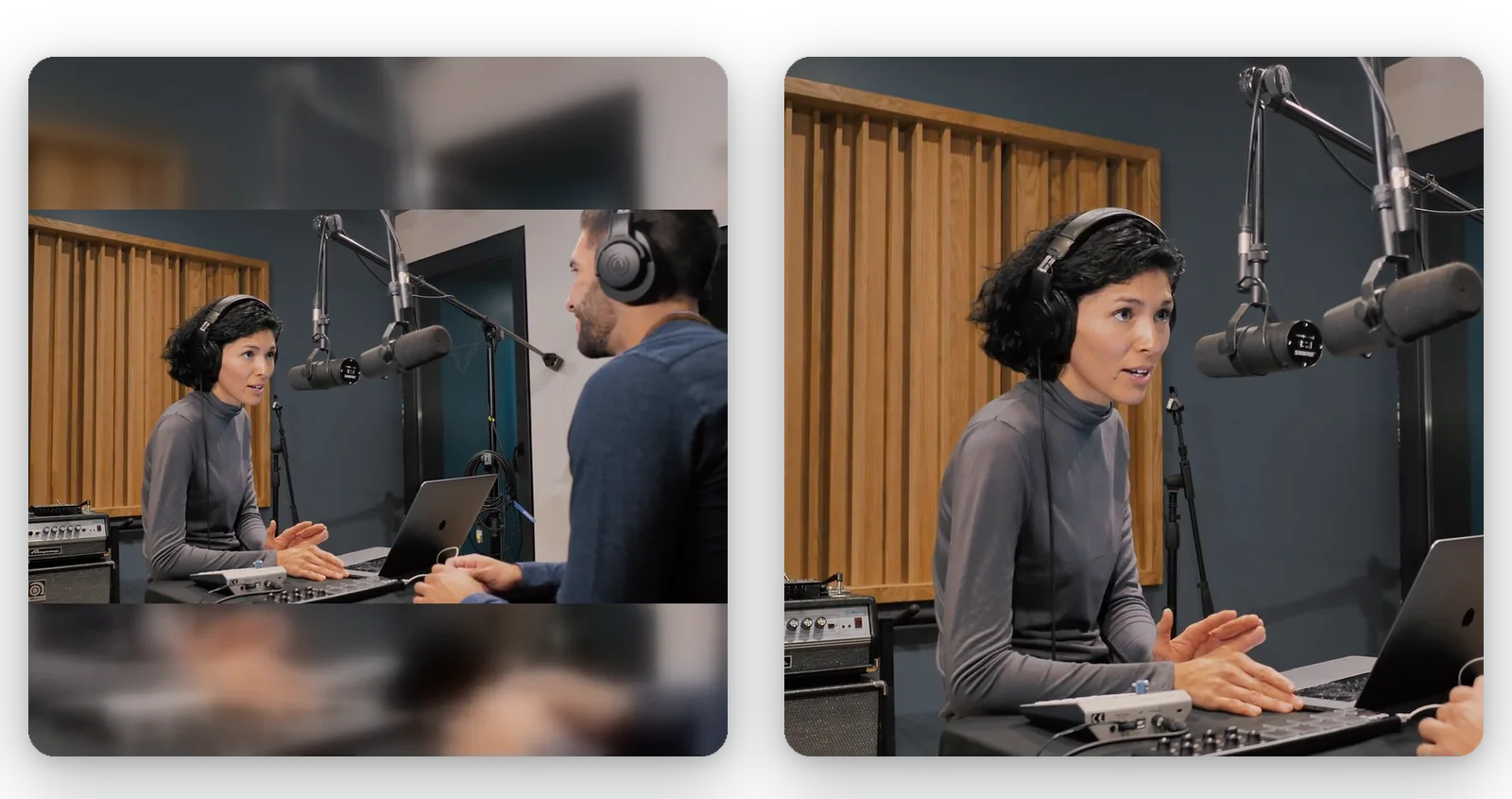
Text and slides stay readable
Professional videos carry captions, charts and logos near the edges. With Fit, none of that is cropped, since the whole frame stays and a blurred extension fills the rest. You can check that every word is still on screen before you export.
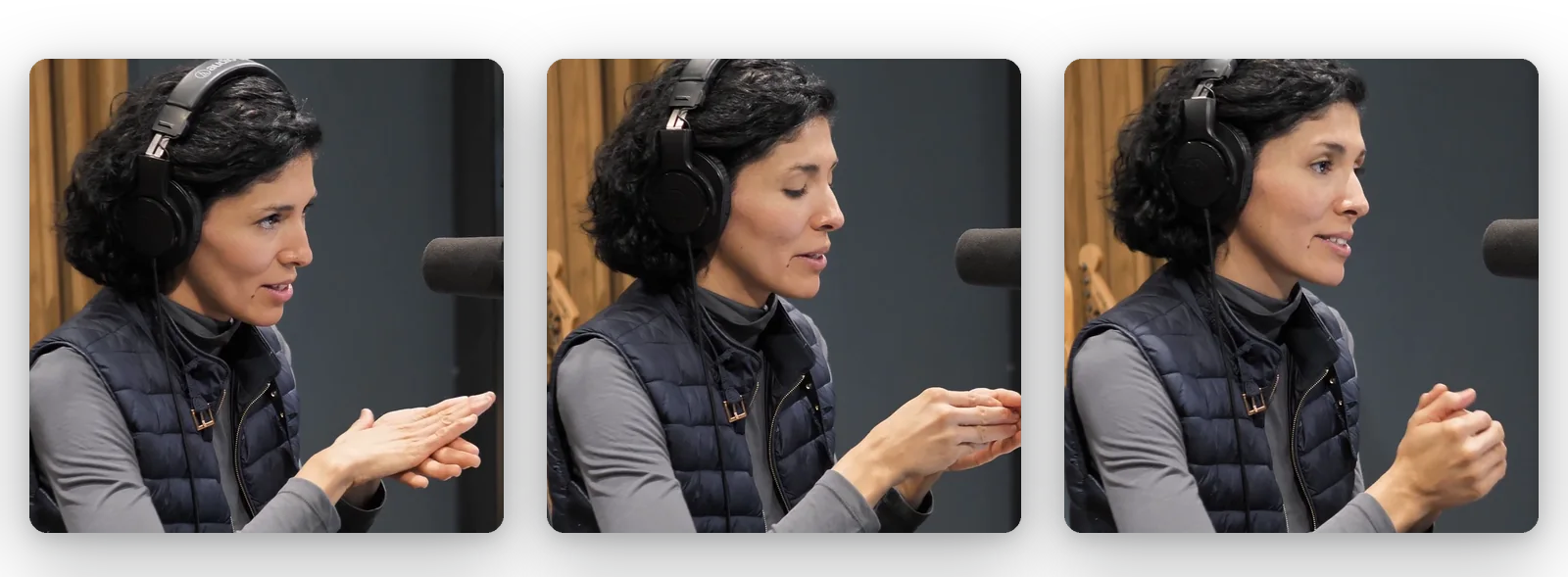
The speaker stays in the picture
When you want a tighter crop on a presenter, Fill follows the main subject, so the person is not cut off by the new frame. It is a quick way to turn a wide recording into a square or vertical excerpt without reframing by hand.
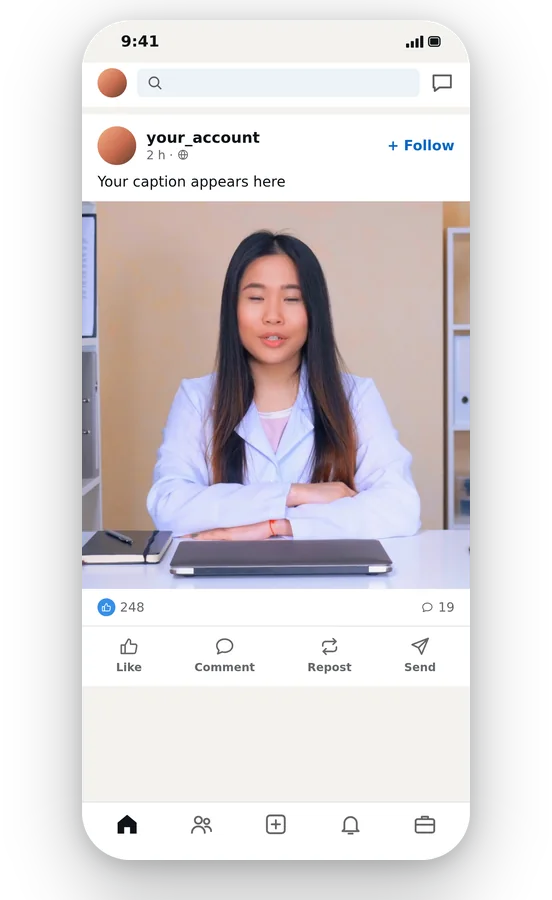
Conversion and resizing in one step
MOV and AVI uploads come out as an MP4, a supported type on LinkedIn's help page, and the new frame is applied in the same pass. Nothing to install, no second tool, and your original file stays as it was for another version.
Where resizing helps a LinkedIn video
A webinar or talk excerpt
A 16:9 recording of a conference talk can become a square excerpt. Fill follows the speaker, Fit keeps the slides visible, and you choose per clip which of the two serves the message.
A product demo for prospects
A demo recorded on a computer is wide and detailed. Reshape it to 1:1 or 4:5 with Fit so the interface stays complete, or keep 16:9 if the screen needs to remain exactly as recorded.
A company announcement or job post
Recruiters and communication teams reuse a video made for a website. A vertical or square version fits the feed of people reading on a phone, without asking the video team for a new export.
A founder's short message
A message filmed on a phone is often vertical already, or sideways by accident. Reframe it to the square or 9:16 shape that matches your post, and check that the face stays centred.
An event recap
Footage from a conference or a team day, shot wide, can be shaped into a recap clip for your Page. Make a 16:9 version for the website and a 1:1 version for the feed from the same file.
Related Tools
LinkedIn video sizes: your questions
Which frame suits a video on LinkedIn?
LinkedIn's help accepts aspect ratios from 1:2.4 to 2.4:1, so 16:9, 1:1, 4:5 and 9:16 are all inside the range (source: linkedin.com/help/linkedin/answer/a1311816). Which one is best depends on the content: square for a compact post, landscape for a talk, vertical for phones.
Is wide 16:9 acceptable to LinkedIn?
Yes. 16:9 is within the aspect ratios that LinkedIn's help page accepts, which run from 1:2.4 to 2.4:1. If you want a different frame, such as square, upload the 16:9 file here and change the format. Fit keeps the whole picture, Fill crops it.
Is 1080 by 1350 acceptable for a LinkedIn post?
1080 by 1350 is a 4:5 frame. It sits inside LinkedIn's accepted aspect-ratio range and resolution range, according to the help page. The 4:5 format is one of the buttons here, so you can produce it directly and check the preview before exporting.
Does 1920 by 1080 work on LinkedIn?
It does: 1920 by 1080 is 16:9 and falls inside the resolution range of 256 by 144 up to 4096 by 2304 listed by LinkedIn's help page. Choose 16:9 and a 1080p resolution here if your video is in another shape and you want to return it to that frame.
Which fate awaits a MOV or AVI upload?
LinkedIn's help says AVI, QuickTime and MOV files are no longer supported. Upload them here anyway: the video is delivered as an MP4, which is on the list of supported types, and the new frame is applied during the same operation.
How do I protect slides and captions from the crop?
Choose Fit. The whole picture stays on screen and the leftover space is filled with a blurred extension of the clip, so a chart or a caption near the edge is never cut. Fill does the reverse: it covers the frame and trims the surplus.
What if my recording exceeds LinkedIn's limits?
Resizing changes the frame, not the duration, and lightens a file only on the side. LinkedIn's help gives a limit of 10 minutes and 5 GB for Pages. To shorten a clip, use the video cutter; to cut the weight without touching the resolution, use the compressor.
Will my LinkedIn video look sharper after resizing?
No. Changing the frame cannot create detail that the camera missed, and asking for more pixels than the source has just spreads the existing ones. Begin with the cleanest original you have. Automatic resolution picks the best quality your plan permits.
Is the finished file stamped in some way?
On the free download, the Klipa logo sits on the video. For a clean file to publish on your Page, you need a Pass covering that video or a Pro plan. Trying the process and the preview costs nothing, which lets you judge the frame first.
Why choose manual framing instead of the automatic crop?
Video to Shorts picks the vertical crop on its own, following the subject, with nothing to configure. This page is for a deliberate choice of frame: square, landscape, 4:5 or vertical, with the picture whole or cropped. For slides and screens, that control matters.
Frame your video for LinkedIn
Square, landscape or vertical, free to try.
No credit card required
A video that fits the feed
A LinkedIn-ready video takes a handful of choices: begin with the 1:1 square or move to 16:9, 9:16 or 4:5, settle between the whole picture and a crop, check the preview, then download an MP4. When the recording runs long, trim it with the video cutter. When the file is too big to upload, the video compressor lowers its weight and leaves the shape alone. Specifications evolve, so glance at LinkedIn's help page before an important post.
